
Getting started
Hands-free ride tracking with Siri, Shortcuts and CarPlay automations
Start and stop ride recording by voice or automatically when your car or helmet headset connects, using the Mountain Passes actions in the Shortcuts app.
Video guide coming soon. The written steps below cover the same ground.
Pass detection needs a ride to be recording. With one automation in the Shortcuts app, the ride starts when your car or motorcycle connects and stops when it disconnects, so you never have to remember. Siri control and the Shortcuts actions are a Pro feature.
Before you start
- Mountain Passes Pro. Starting a ride through Siri or Shortcuts checks for it; the Start Ride button in the app itself stays free.
- Location access set up (two-minute setup).
- The Shortcuts app, preinstalled on every iPhone.
- Something to trigger on: CarPlay, a Bluetooth helmet headset, intercom or car stereo, leaving home, or a Focus.
The actions Mountain Passes provides
| Action | What it does |
|---|---|
| Start Ride | Begins recording a ride |
| Stop Ride | Ends the ride and files it |
| Pause Ride / Resume Ride | Manual pause, in addition to auto-pause |
| Get Ride Status | Tells you whether a ride is recording and for how long |
None of the actions take parameters; the ride is named automatically from where you rode, as usual. Mountain Passes has no CarPlay screen of its own: CarPlay is used here as the trigger that starts the ride.
Siri
Say "Start ride in Mountain Passes" (or "Start tracking in Mountain Passes"), "Stop ride in Mountain Passes", "Pause ride in Mountain Passes" or "Resume ride in Mountain Passes". The phrases appear in the Shortcuts app under Mountain Passes as soon as the app is installed.
Steps: start a ride when CarPlay connects
- Open Shortcuts and go to the Automation tab.
- Tap + (New Automation). The list of triggers appears; CarPlay sits with the other device triggers next to Bluetooth.
- Pick CarPlay and keep the connects option selected. Choose Run Immediately so the automation does not ask for confirmation while you are driving, then tap Next.
- Tap New Blank Automation, search for Mountain Passes and add Start Ride. Tap Done.
- Repeat for the disconnects option with Stop Ride. If you often switch the engine off for a photo stop, add a Wait of a few minutes in front of Stop Ride, or skip the stop automation and end rides by hand.
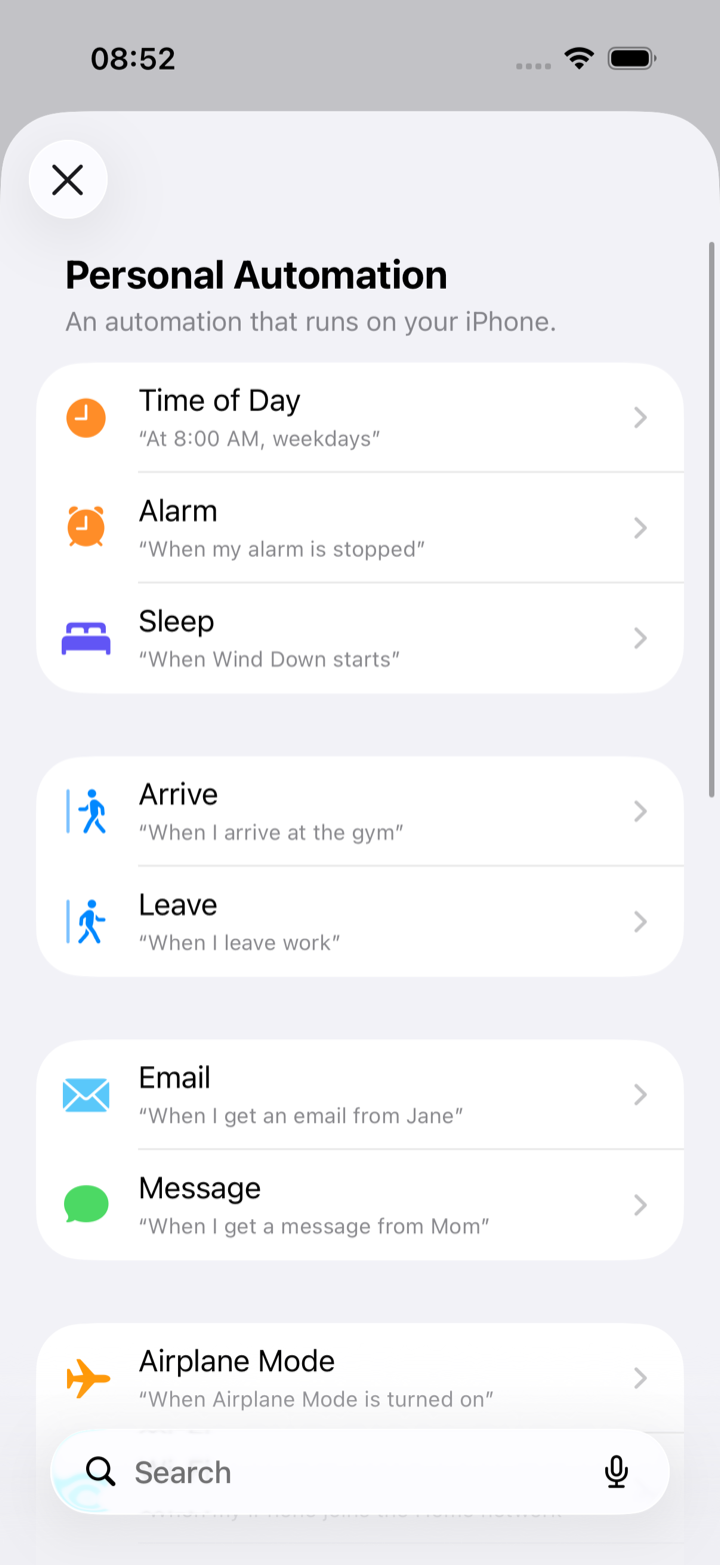
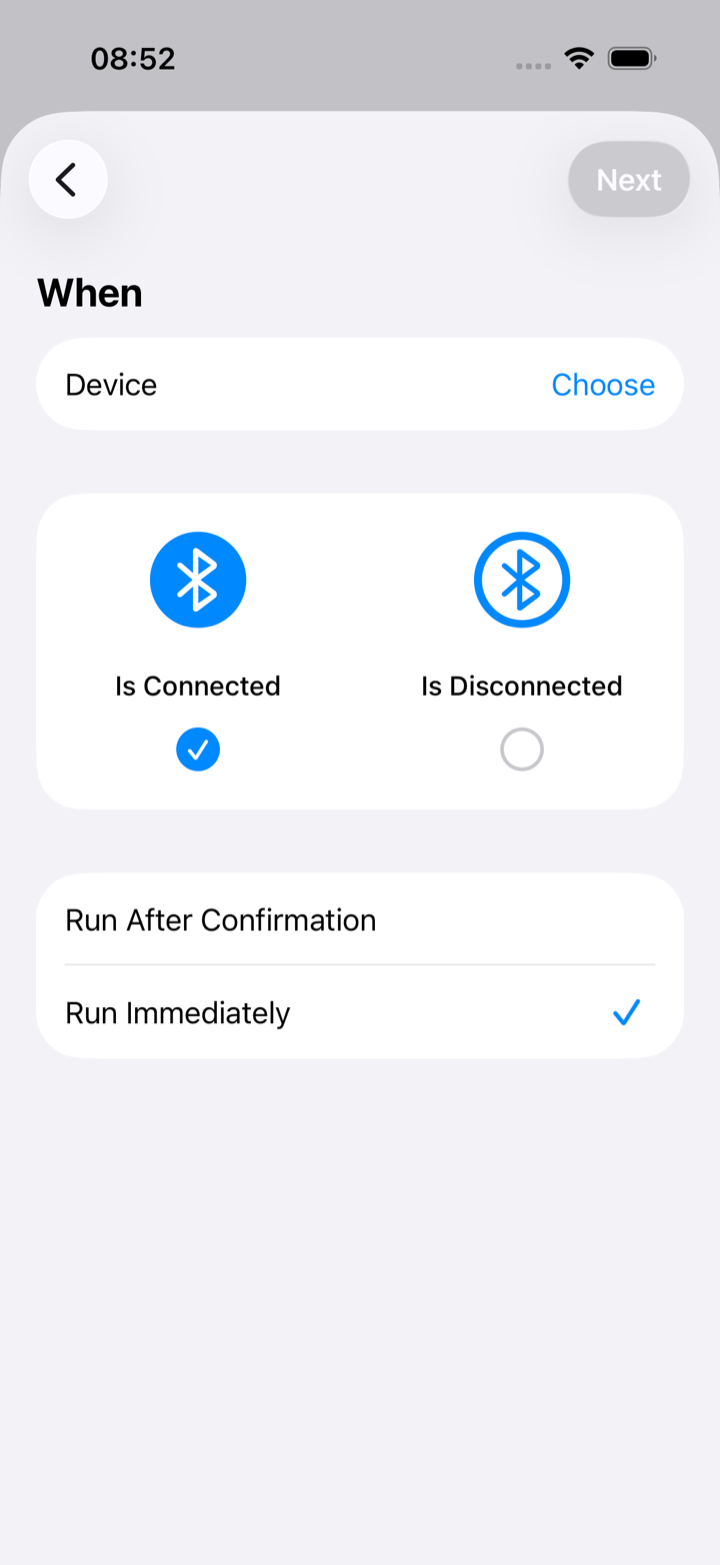
The Bluetooth trigger, pictured, is the same recipe for riders without CarPlay: tap Choose next to Device and pick your helmet headset, intercom or the bike itself.
Other triggers that work well
- Bluetooth › your helmet headset, intercom or motorcycle: Is Connected for Start Ride, Is Disconnected for Stop Ride.
- Leave › Home in the morning starts the day's ride; Arrive › Home stops it.
- Focus › Driving turns on starts a ride when iOS detects you are driving.
- Time of Day on tour days if you like a fixed routine.
Troubleshooting
- The automation asks before running. Open it in Shortcuts and switch it from Run After Confirmation to Run Immediately.
- The action says a Pro subscription is required. Siri and Shortcuts ride control needs Pro. Check Home › Settings for the Pro badge, or Restore Purchases on the upgrade screen.
- The ride started but no passes appear. The automation only starts the recording. Detection still needs location access with Precise Location on; see Why a pass didn't log.
- Two rides for one day. A reconnect after a stop started a new ride. Add a Wait before Stop Ride, or group the two rides into a trip.