
Getting started
Log a pass you crossed without the app
Add a mountain pass visit by hand when no ride was recording, the phone was in flight mode, or you crossed it before you installed Mountain Passes.
Every rider has crossings from before the app existed, or a day when no ride was recording. You can add those by hand. A manual visit counts exactly like a detected one: it goes into your collection, unlocks the poster if the pass has one, and counts toward achievements.
Steps: log a visit on its own
- Find the pass in the Passes tab or with Search.
- Open it and tap Log.
- Set the date. Optionally add Photos, a Note, one or two What stood out? tags and the Weather.
- Tap Save. The visit appears on the pass page with its date.
Steps: add a pass to a ride
If the crossing belongs to a ride you recorded, add it there so it shows up in that ride's pass list and timeline:
- Open the ride from Home (the latest ride card, or All for the full list) or find it with Search.
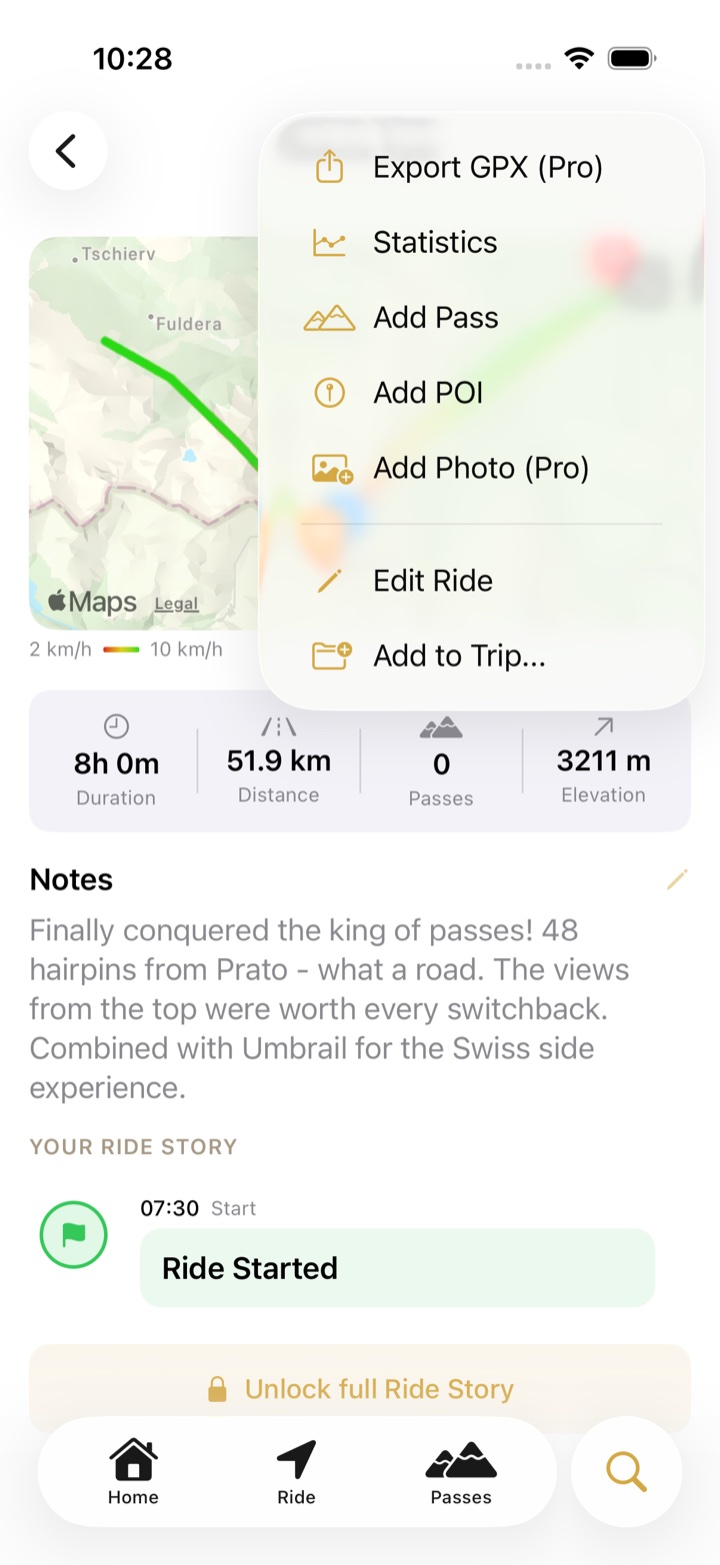
- Tap ⋯ in the top-right corner and choose Add Pass.
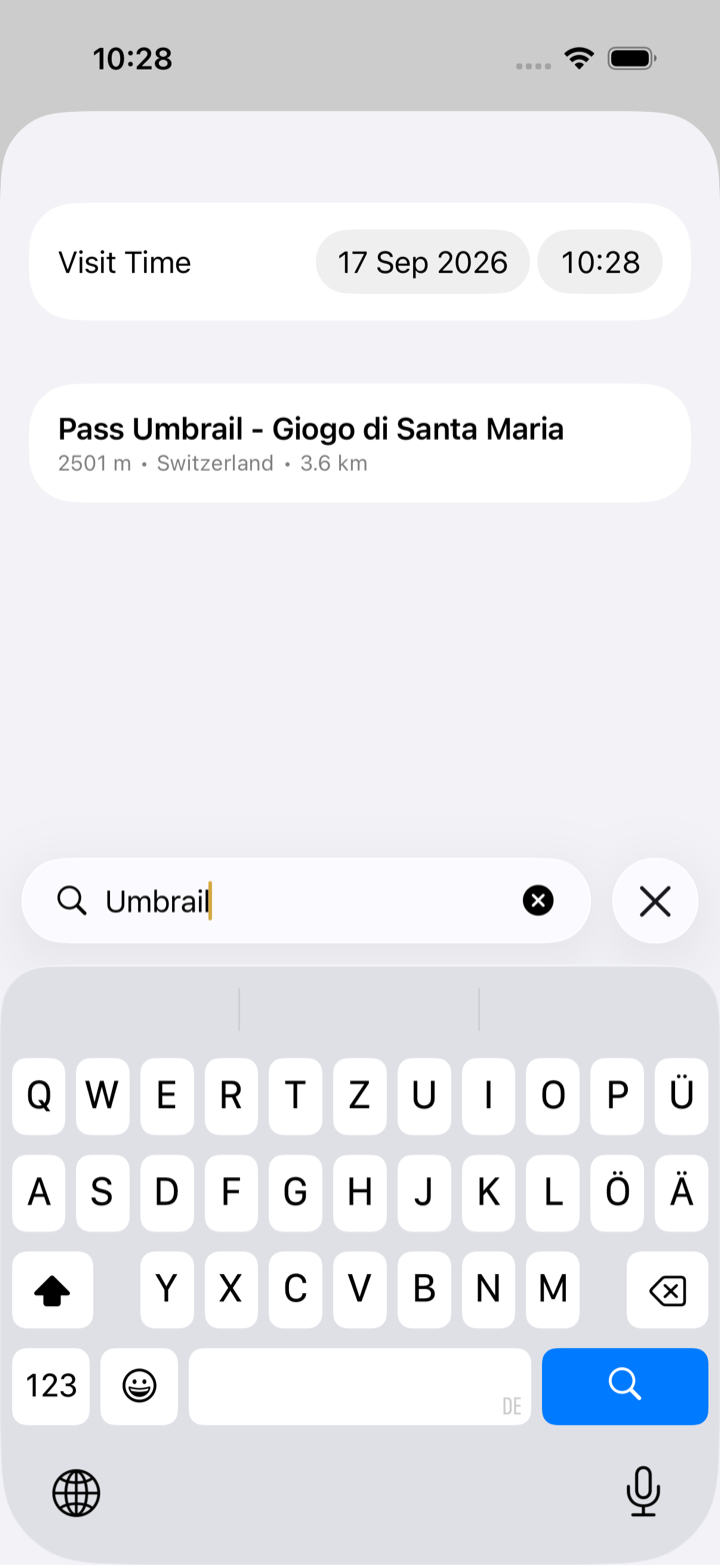
- Set the Visit Time at the top of the sheet so the visit sits at the right point of the ride, then search for the pass and tap it. It is added to the ride straight away and shows up in the ride's pass count and timeline.
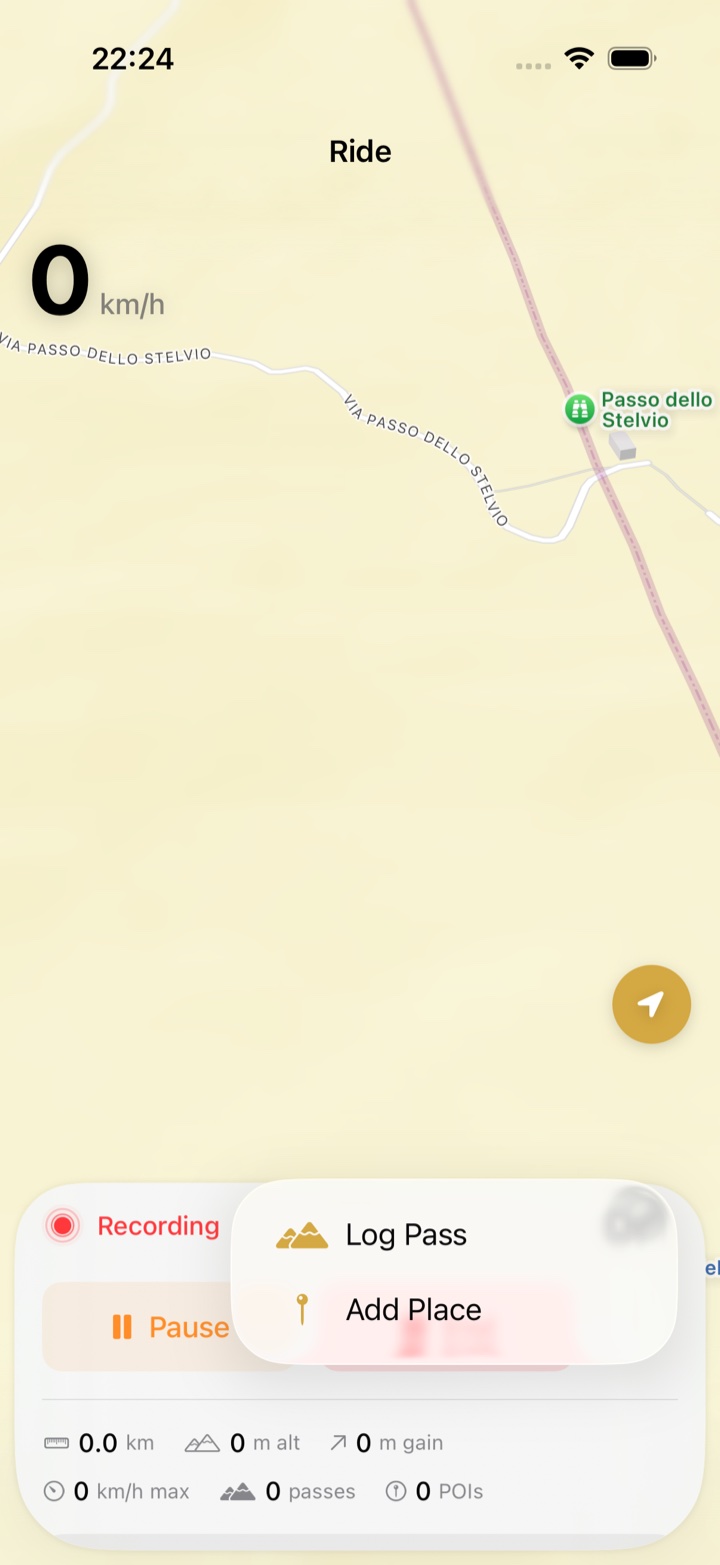
The same Log Pass action is on the + button of the ride screen while a ride is recording.
Bulk backfill
If you have GPX files from Strava, Komoot or a Garmin, importing them detects every pass on the track in one go and is faster than adding visits one by one.
Troubleshooting
- The visit was logged twice. Open the pass, tap the duplicate visit and choose Delete. If one of them came from GPS, keep that one; it has the exact time.
- No poster appeared. Only 311 passes have a poster. The pass page shows the poster (blurred until you visit) when there is one.
- I want to change the date. Open the visit from the pass page and edit it.