
Your story
Import your ride history from Strava, Komoot or Garmin with GPX
Bring past rides into Mountain Passes from a GPX export or from Apple Health. The app detects every pass on the track and adds the visits to your collection.
Video guide coming soon. The written steps below cover the same ground.
Years of rides sit in Strava, Komoot and Garmin Connect. Export them as GPX, import them here, and the app runs pass detection over the old track: every crossing lands in your collection with its original date and time, and posters unlock as if you had ridden it with the app. GPX and Apple Health import are Pro features.
Before you start
- Mountain Passes Pro.
- GPX files with timestamps. Recorded activities have them; planned routes usually do not. A file without timestamps still imports and still detects passes, but the ride is dated today until you edit it.
- One file per import. A ride is one GPX file.
Export from Strava
- Open the activity on the Strava website.
- Click the ⋯ menu and choose Export GPX.
- For your whole history: Settings › My Account › Download or Delete Your Account › Request Your Archive. Strava emails a zip with every activity.
Export from Komoot
- Open the tour on the Komoot website.
- Choose Export › GPX. Recorded tours include timestamps; planned tours do not.
Export from Garmin Connect
- Open the activity on the Garmin Connect website.
- Click the gear icon and choose Export to GPX.
Vendors move these menus around occasionally; the wording above is current at the time of writing.
Import into Mountain Passes
Get the GPX onto the phone: save it to Files, AirDrop it, or share it from the other app.
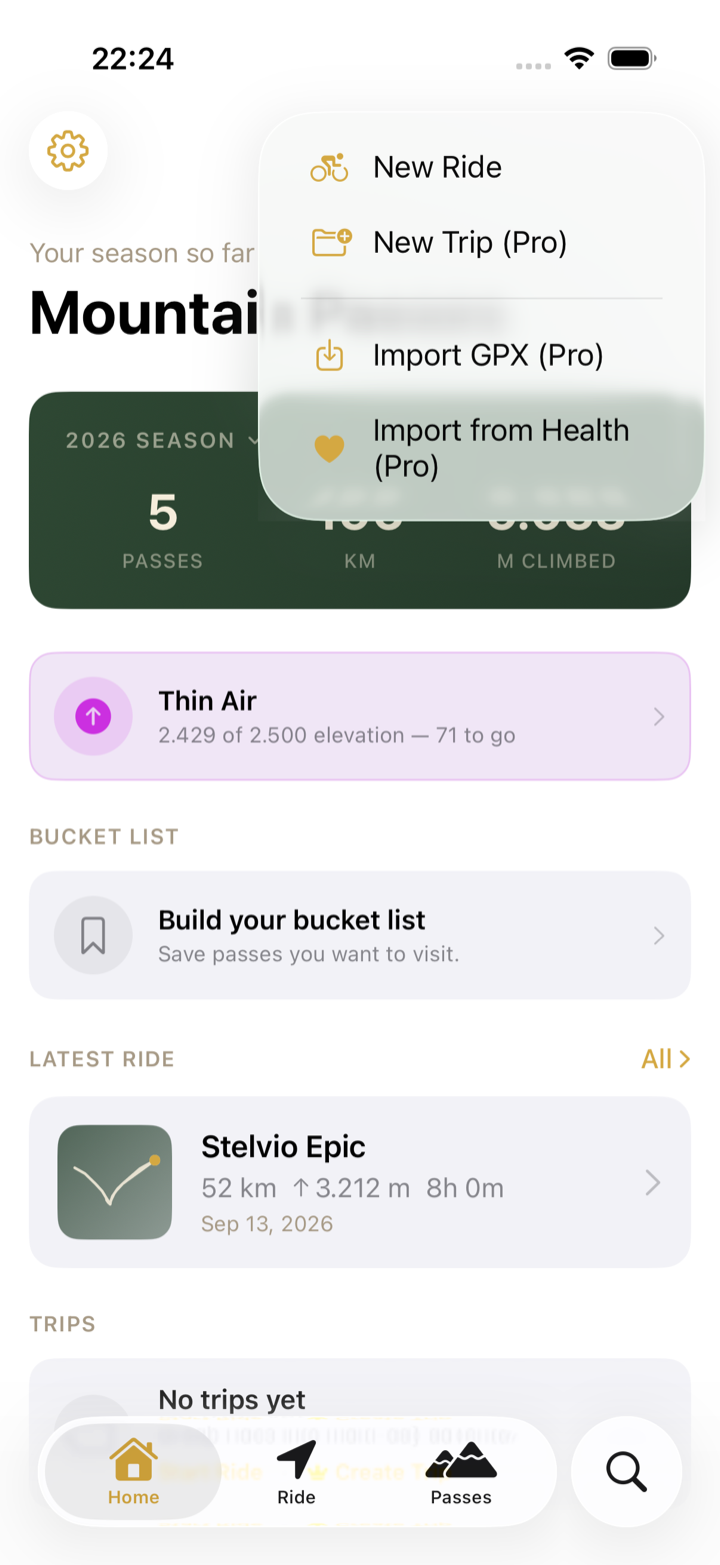
On Home, tap + in the top-right corner and choose Import GPX, then Choose File.
Review the preview. Route Stats shows the date, distance, elevation, duration and number of points; Detected Passes lists every pass the track came within 500 m of, with the time of the crossing.
Tap Import. The file becomes a ride with its route, and each detected pass becomes a visit on that ride.
Two more entry points do the same thing in context: ⋯ › Import GPX on a ride without a route attaches the track to that ride, and ⋯ › Import GPX on a trip creates the ride inside the trip.
Apple Health
Rides recorded with an Apple Watch or any app that writes to Health (Strava, Wahoo, Garmin and others can) do not need a GPX file. On Home tap + › Import from Health, tap Connect to Health and allow reading workouts and routes. Cycling workouts are listed newest first; pick one for a preview with the route, the detected passes and, if recorded, heart rate. Workouts you have already imported are marked Imported and are skipped.
Troubleshooting
- A known pass was not detected. The track passes more than 500 m from the summit marker, or has too few points near it. Log it by hand on the ride with ⋯ › Add Pass.
- The date is wrong. The GPX had no timestamps. Open the ride, tap ⋯ › Edit Ride and set Start and End.
- I imported the same file twice. GPX imports are not de-duplicated. Delete the extra ride; its visits go with it.
- My export is a FIT or TCX file. Convert it to GPX first; most services offer GPX directly, and Garmin Connect exports GPX from the activity page.
- The import takes a while. Long tracks are checked point by point against the catalogue. A full day's ride takes a few seconds.